OLED vs IPS Monitor 2026: The Brutal Truth Before You Buy
Researched Comparison of Contrast, Burn-In, Speed, and Price
Pick the wrong panel, and you will feel it every single day. Choosing between an OLED vs IPS monitor is the biggest decision you will make before buying a new display. To build this guide, we researched and compared specs, expert reviews, and owner feedback across the main panel types. Expect plain words on contrast, speed, burn-in risk, and price.
Made for gamers, movie fans, office workers, and creators, our article gives an honest recommendation before you spend money. It also covers VA panels, curved screens, sizes, and sync technology, since the panel is only one part of the choice.
Quick answer: OLED is the better pick if you game, watch movies, or want the best HDR and can accept some burn-in care. IPS is enough if you work with text all day, use a bright room, or need to save money.
Quick Verdict: OLED vs IPS at a Glance
| Factor | OLED | IPS |
|---|---|---|
| Contrast | Effectively infinite | About 1000:1 to 1500:1 |
| Response time | Often cited around 0.03ms | About 1ms on fast models |
| Burn-in risk | Never zero | None |
| Text clarity | Can look fringed on some panels | Sharp, standard RGB layout |
| Bright rooms | Glossy screens reflect light | Better suited to daylight desks |
| Price (approx.) | Often over $1,000 at high refresh | Often under $300, even at 300Hz+ |
| Best for | Gaming, movies, HDR | Office work, budget esports |
| Key Takeaways for Readers OLED = best contrast and motion clarity for gaming, movies, and HDR, but it needs burn-in care. IPS = best all-rounder for text work, bright rooms, and tight budgets, with no burn-in risk. VA = best contrast per dollar among LCDs, though dark ghosting can hurt fast games. Curved suits immersion and ultrawides, while flat suits color-accurate work.27-inch 1440p is the sweet spot for most desks, and 32-inch 4K suits sharper work. Rule of thumb: pick the panel for your daily use first, then the size and refresh rate. |
Who This Monitor Guide Is For
Perfect for buyers comparing display types, our guide offers researched, data-backed guidance instead of marketing claims. It also helps creators, remote workers, and console gamers choosing between sizes, curves, and sync features.
Skip this guide if:
- You only need a basic 1080p screen for occasional browsing
- You want a TV-sized display for a living room, not a desk
- You already own a monitor that meets your needs
OLED Monitors: Best for Contrast and Gaming
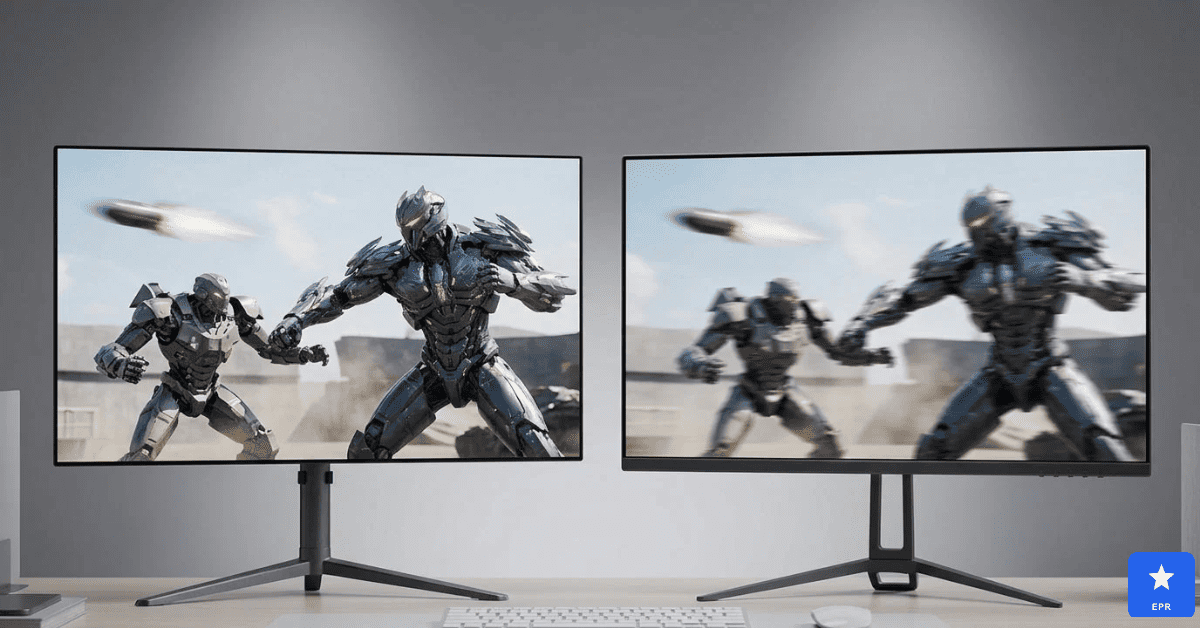
An OLED monitor lights every pixel on its own, so black pixels switch fully off. That gives effectively infinite contrast and deep, inky dark scenes that no standard IPS can match. Motion is the other big win, with response times often cited around 0.03ms, which keeps fast action crisp.
The catch is burn-in. Static items like taskbars and game HUDs can leave faint marks over time, and the risk is never zero. Makers add pixel shifting and cleaning cycles to reduce it. Glossy screens also reflect room light, so a dim room suits OLED best.
Design & Features
| Feature | Details |
|---|---|
| Panel Tech | Self-lit pixels (QD-OLED or WOLED types) |
| Contrast | Effectively infinite |
| Response Time | Often cited around 0.03ms |
| Refresh Rate | Up to 240Hz at 4K, such as the 32-inch ASUS ROG Swift PG32UCDM |
| Burn-in | Risk is never zero; pixel shifting and cleaning cycles help |
| Text Rendering | Many use a triangular subpixel layout that can cause fringing on text |
| Price (approx.) | Often over $1,000 for ultra-high-refresh models |
Pros
- Movies and HDR look cinematic in a dark room
- Colors pop without a pricey backlight system
- Great fit for console gaming on a desk
Cons
- Needs sensible habits, like auto-hiding the taskbar
- Poor value if you mostly work in documents
- Warranty terms differ, so read the burn-in cover carefully
IPS Monitors: Best All-Rounder for Work and Budgets
An IPS monitor uses a constant backlight behind its pixels, so colors stay accurate from wide angles. Modern fast IPS panels have largely fixed the ghosting problems of the past. Many now pass 300Hz, which suits competitive shooters who care about speed more than deep blacks.
In daily use, IPS shines with text. The standard RGB layout keeps letters sharp, and there is no burn-in to worry about. The main weakness is contrast. Blacks look grey in a dark room, and the Mini-LED backlights that narrow the gap cost a lot.
Design & Features
| Feature | Details |
|---|---|
| Panel Tech | LCD with a constant backlight |
| Contrast | About 1000:1 to 1500:1 |
| Response Time | About 1ms grey-to-grey |
| Viewing Angles | About 178 degrees |
| Refresh Rate | Fast IPS can reach 300Hz |
| Burn-in | None |
| Price (approx.) | 27-inch 1440p 200Hz under $200; 300Hz and above under $300 |
Pros
- Easy choice for long days of coding and email
- Wide range of sizes and budgets to pick from
- Dependable for shared family or office desks
Cons
- Corner glow can distract in dim rooms
- Few models deliver truly cinematic HDR
- Looks plain beside OLED in side-by-side demos
VA Panels: Best Contrast on a Budget
VA panels sit between IPS and OLED on contrast. Native ratios often reach 2500:1 to 6000:1, which gives deeper blacks than IPS for movies and story-driven games. They are popular on curved and ultrawide monitors, where the extra contrast adds drama in dim rooms.
The trade-off is motion and angles. Dark trails can follow fast objects, a problem known as ghosting, and colors shift when you view the screen from the side. That makes VA a weaker match for fast shooters, but a smart pick for a single viewer in a dark room.
Design & Features
| Feature | Details |
|---|---|
| Panel Tech | LCD with vertical-alignment liquid crystals |
| Contrast | About 2500:1 to 6000:1 |
| Viewing Angles | Narrower than IPS, with color shift at the sides |
| Motion | Dark-trail ghosting in fast scenes |
| Burn-in | None |
| Common Formats | Curved and ultrawide monitors |
| Price (approx.) | Usually below OLED |
Pros
- Good value for movie nights
- Curved ultrawide formats feel immersive in single-player games
- No special care needed, unlike OLED
Cons
- Poor choice for competitive shooters
- Awkward for sharing the screen with a friend on the couch
- Rare among color-critical creator monitors
Curved vs Flat Monitor: Which One Fits You?
A curved monitor wraps the screen toward your eyes, which keeps the edges at a similar distance and feels immersive on wide screens. A flat monitor is easier to line up for design work and avoids stretched edges. A 49-inch curved ultrawide offers roughly the space of two monitors.
For color-sensitive work, a flat IPS panel is the safer choice. For contrast-focused gaming and movies, curved VA models are a popular pick. If you are comparing a curved monitor vs. a flat model, think about your desk size first.
27 Inch vs 32 Inch Monitor: Which Size Is Right?
Size changes how sharp the picture feels, not just how big it looks. A 27-inch 1440p screen is the sweet spot for most desks. A 32-inch 4K screen adds room for windows and keeps text crisp. Moving up from 24 inches adds noticeable space too.
| Size and Resolution | Pixel Density (approx.) | Best For |
|---|---|---|
| 24 inch, 1080p | About 92 PPI | Tight desks and budget esports |
| 27 inch, 1440p | About 109 PPI | Most desks and everyday gaming |
| 27 inch, 4K | About 163 PPI | Very sharp text and creative work |
| 32 inch, 4K | About 138 PPI | Media, creators, and console gaming |
The 24 vs 27 inch monitor question usually comes down to desk depth. A 24-inch model suits close seating and esports, while a 27-inch model gives more room without losing sharpness at 1440p.
75 Inch Monitor vs 40-inch: Is Bigger Better?
A 75-inch screen is really a TV. At 4K, it works out to about 59 pixels per inch, so you must sit several feet back to avoid seeing the pixel grid. A 40-inch 4K display is about 110 pixels per inch and fits a desk when you sit an arm’s length or more away.
In short, choose 40 inches for desk use and a 75-inch 75 inch monitor vs 40 style jump only for a living room. The bigger screen needs far more space and viewing distance.
FreeSync vs G-Sync: Does It Matter?
Both technologies match the screen’s refresh rate to your graphics card, which reduces tearing and stutter. G-Sync has three tiers. G-Sync Ultimate and G-Sync use an Nvidia processor, while G-Sync Compatible monitors do not and are validated for a basic variable refresh experience.
FreeSync comes in FreeSync, Premium, and Premium Pro tiers, with Premium Pro adding HDR requirements. It works with AMD Radeon cards, and AMD says Nvidia GeForce 10 series and newer cards should work through DisplayPort Adaptive-Sync. Confirm with the monitor maker before buying.
Price Comparison: What Each Panel Costs
| Panel Type | Approx. Price | Example Models From Reviews | Value |
|---|---|---|---|
| IPS, 27-inch 1440p 200Hz | Under $200 | KOORUI G2721P | Best budget |
| Fast IPS, 300Hz and above | Under $300 | Esports-focused fast IPS models | Best for esports |
| VA, curved or ultrawide | Usually below OLED | Curved ultrawide VA models | Good contrast value |
| OLED, high refresh | Over $1,000 | ASUS ROG Swift PG32UCDM, Alienware AW3225QF | Premium |
Who Is Each Panel Best For?
- OLED is best for: gamers and movie fans who sit in dim rooms and want the best contrast and motion clarity.
- IPS is best for: coders, office workers, and budget esports players who need sharp text and no burn-in worry.
- VA is best for: movie fans and single-player gamers who want deep blacks on a tighter budget.
How Do These Panels Compare With Each Other?
- OLED vs IPS: OLED wins on contrast and motion, while IPS wins on price, text sharpness, and burn-in safety.
- IPS vs VA panel: IPS has better viewing angles and cleaner motion, while VA has deeper blacks for movies and dark games.
- OLED vs VA: OLED is far better for fast action and HDR, though VA costs less and needs no burn-in care.
How to Choose the Right Monitor Panel?
The best monitor is the one that fits your daily routine and room. Use these points to narrow your shortlist before spending money.
- Daily use: choose OLED for play and movies, and IPS for long hours of text.
- Room light: bright rooms favor IPS, while dim rooms let OLED and VA shine.
- Budget: include a warranty that covers burn-in if you buy OLED.
- Size: pick 27 inches for most desks, and 32 inches if you want 4K sharpness.
- Sync support: match FreeSync or G-Sync to your graphics card before you buy.
Frequently Asked Questions (FAQs)
Q1: Is an OLED vs IPS monitor better for gaming?
OLED is better for gaming, thanks to near-instant response and deep blacks, but IPS costs far less.
Q2: Will an OLED monitor burn in?
It can, since the risk is never zero, but pixel shifting and good habits greatly reduce it.
Q3: Which is better, IPS vs VA panel?
IPS suits fast games and wide viewing angles, while VA gives deeper blacks for movies.
Q4: Is a curved monitor better than a flat one?
Curved suits immersive gaming and ultrawides, while flat suits design work and shared screens.
Q5: Is a 27-inch or 32-inch monitor better?
A 27-inch fits most desks, while a 32-inch 4K gives more space and sharper detail.
Q6: Should I choose FreeSync or G-Sync?
Pick the one your graphics card supports, since both reduce tearing in games.
Final Verdict
After researching panel technology, burn-in risk, speed, and price, OLED earned our top spot for gaming and movies. IPS remains the smarter all-round buy for work and tighter budgets, while VA suits dark-room viewing on a budget.
Prices and availability are current at the time of writing and may change. Always check the retailer’s site for the latest pricing.